
1. Launch profile
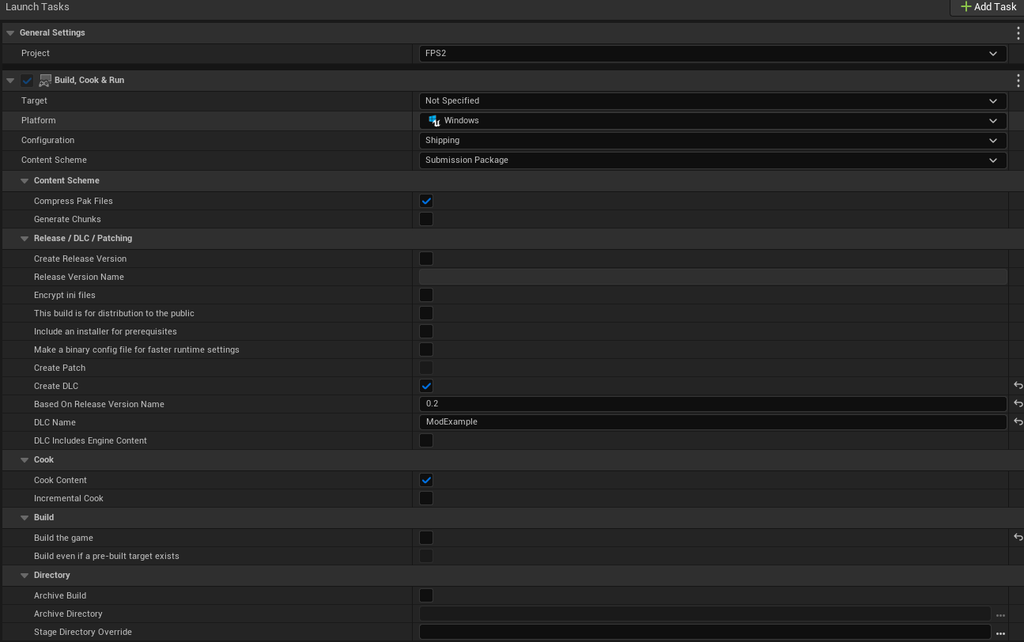
Platforms → Project Launcher → Add → Custom Launch Profile. The Basic profile will not do: it has no DLC mode.
Name the profile, for example Mod <ModName>.
2. Which fields to change
| Section | Field | Value |
|---|---|---|
| General Settings | Configuration | Shipping |
| General Settings | Content Scheme | Submission Package |
| Release / DLC / Patching | Create DLC | enable |
| Release / DLC / Patching | DLC Name | the plugin folder name, e.g. ModExample (no .uplugin) |
| Release / DLC / Patching | Based On Release Version Name | 0.2 – the API version; enter only it |
| Release / DLC / Patching | Create Release Version | clear after enabling Create DLC |
| Release / DLC / Patching | Create Patch, DLC Includes Engine Content | disable |
| Build | Build the game | disable (the kit has no C++) |
| Cook | Cook Content | enable |
Everything else – leave at defaults.
The
Release / DLC / Patchingsection appears only withConfiguration = ShippingandContent Scheme = Submission Package; clearCreate Release Versionlast – otherwise the section disappears.
3. Run
Launch → wait for AutomationTool exiting with ExitCode=0.
Stage: FPS2ModKit\Plugins\GameFeatures\<ModName>\Saved\StagedBuilds\Windows
4. Where it goes in the game
The game is installed as <Game>\FPS2\.
| What | Where |
|---|---|
<ModName>-<Platform>.pak + .utoc + .ucas | <Game>\FPS2\Content\Paks\ |
The GameFeatures\<ModName> folder from the stage | <Game>\FPS2\Plugins\GameFeatures\ (over the existing mod folder) |
The JSBSim model files from <Kit>\Plugins\FlightPhysics\Resources\ | <Game>\FPS2\Plugins\FlightPhysics\Resources\ (into the same subfolders) |
- The pak goes into
FPS2\Content\Paksspecifically – that folder alone is mounted by the game; a pak inside a plugin folder is not picked up. - Do not rename any files.
- The JSBSim model (
aircraft/<Name>/*.xml) never lands in the pak: it is not an asset, so it is moved as files.
5. Check
Launch the game – the mod’s aircraft is in the aircraft selection.